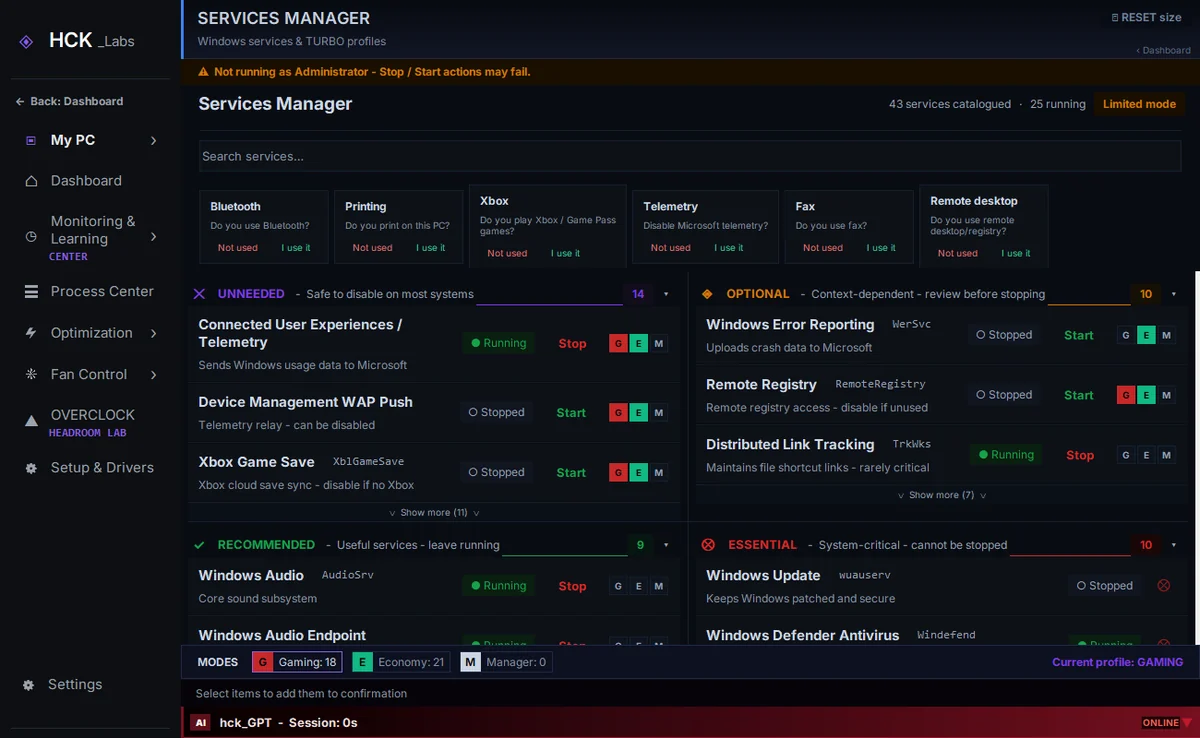
Four groups, one reason each
services.msc lists hundreds of services with names like dmwappushservice and
no advice. Services Manager takes the 43 that people actually ask about and sorts them:
Unneeded (14)
Safe to stop on most PCs: telemetry, the WAP push relay, Xbox cloud saves when you do not play Xbox games.
Optional (10)
Depends on you: error reporting, remote registry, link tracking. Read the line, then decide.
Recommended (9)
Useful, leave them running: audio and its endpoint, and the others a normal PC expects.
Essential (10)
System-critical, cannot be stopped from here: Windows Update, Defender and the core of Windows.
Every row has the service's name, its Windows name, one line of what it does, whether it runs now, and the profiles it belongs to (Gaming, Economy, Manager).
Six questions instead of a tweak list
Tweak lists online say "disable the print spooler" to everyone, including people with a printer. Services Manager asks first:
- Bluetooth: do you use Bluetooth?
- Printing: do you print on this PC?
- Xbox: do you play Xbox or Game Pass games?
- Telemetry: turn off Microsoft telemetry?
- Fax: do you use fax?
- Remote desktop: do you use remote desktop or remote registry?
"Not used" marks those services for your list; "I use it" keeps them out of every profile.
Gaming, Economy, Manager
- Gaming (18 services): telemetry, search indexing, SysMain, Xbox services, maps, tablet input, fax, remote registry, remote desktop, printing, Bluetooth, retail demo and the payment service. More headroom for the game while TURBO is on; search in the Start menu is slower until you turn it off.
- Economy (21): everything non-essential, including Windows Update and Bluetooth, for the longest battery life or the quietest PC. Not for every day.
- Manager: exactly the services you pick, nothing else.
Profiles run as part of TURBO: the services stop when TURBO starts and start again when it ends. The state of every service is saved before a change, so one click puts it all back.
What is never touched
33 services are locked in the code, whatever you click: networking (DHCP, DNS client, network list), audio, the firewall and Windows Defender, Windows Security, the event log, the task scheduler, power, cryptography, the graphics drivers of NVIDIA and AMD, and the processes that keep Windows itself alive. The list is open to read.
Services Manager, services.msc, tweak lists, game boosters
| PC Workman Services Manager | services.msc | Online tweak lists | One-click game boosters | |
|---|---|---|---|---|
| Explains each service | Yes, one line | Microsoft's description | Varies | Rarely |
| Asks how you use the PC | Yes, 6 questions | No | No | No |
| Critical services locked | Yes, 33 | No | No | Varies |
| Profiles | Gaming, Economy, your own | No | No | Gaming |
| Undo with one click | Yes, state saved | By hand | By hand | Usually |
| Shows every service | 43 that matter | All of them | Varies | No |
Where the others are better. services.msc shows every service with every setting, including the startup type and recovery actions. If you need one exact service that is not among the 43, use it. Services Manager is for the question most people have: what can I stop without breaking something?
Questions
Which Windows services can I safely disable?
The ones for things you do not use: Bluetooth, the print spooler, Xbox services, fax, remote desktop and remote registry, and Microsoft telemetry. Leave networking, audio, security, Windows Update and the system services alone. PC Workman asks and locks 33 critical services.
Does disabling services make games faster?
A little, mostly fewer background spikes rather than more FPS. Startup programs and background apps usually matter more.
What do the Gaming and Economy profiles stop?
Gaming stops 18 services, Economy 21 including Windows Update and Bluetooth. Manager is your own list. The full lists are above.
How do I undo it?
Turn the profile off or press Start next to a service. The state of every service is saved before a change and put back.
Why does it say Limited mode?
Starting and stopping services needs administrator rights. Without them everything is listed and explained, and the page says changes may fail.
How to open it
In PC Workman: My PC › Services Manager, or Optimization › TURBO for the profiles. Ask hck_GPT "which services can I disable" for the same advice in the chat.
Works since PC Workman 1.9.3 · page updated 2026-11-21 · Windows 10 and 11