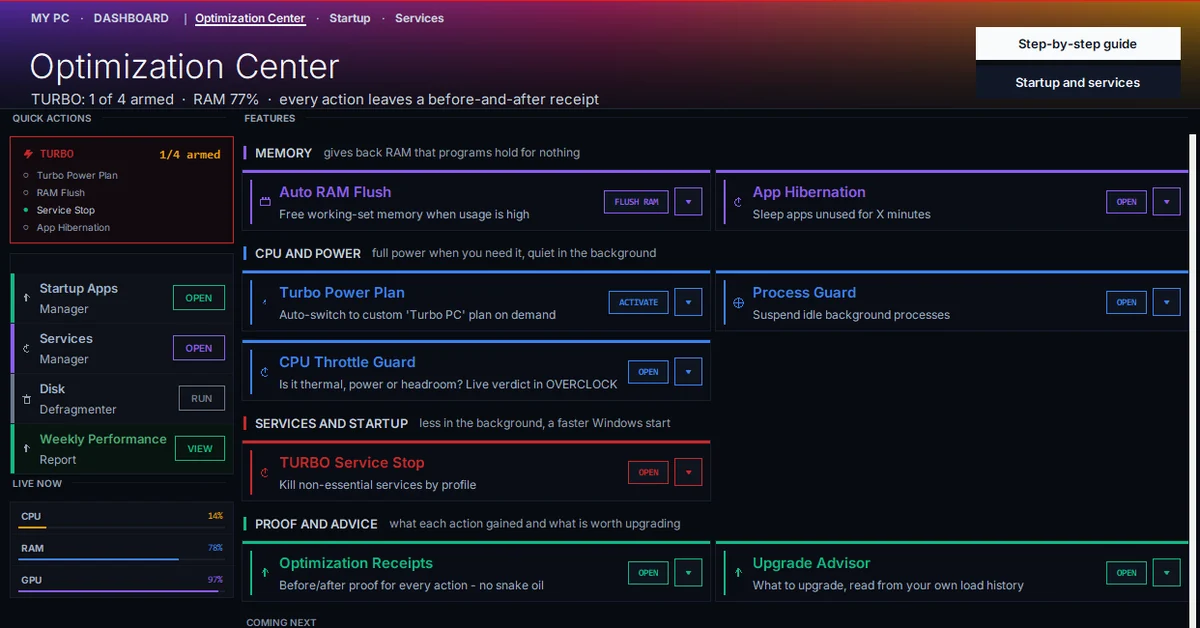
What TURBO does
RAM Flush
Above 75% RAM, asks idle programs to return working memory. Only on sustained pressure, not every second.
Turbo power plan
Switches to a high-performance plan while a game or full-screen app runs, keeps the battery plan on a laptop off the charger, restores your plan on exit.
Paused services
Stops the services of the chosen profile (Gaming: 18) and starts them again afterwards.
Sleeping apps
Pauses known background apps idle for 5 minutes (browsers, Discord, Spotify, Teams, OneDrive, Steam, Epic); they wake after 30 minutes or when TURBO ends.
What it never touches
The only apps TURBO can pause are a fixed list of 13 background programs. Games are not on it, and neither is anti-cheat, so nothing a game or its protection needs is ever frozen mid-match. On top of that, anything matching antivirus, antimalware, firewall, Defender, NVIDIA, AMD, Intel, display, audio or the Windows system folders is protected, along with 35 named Windows and security processes. The lists are open to read.
Measured, not promised
Microsoft's own PC Manager shows why measuring matters: in PCMag's test its Boost cut memory use by about 5% and moved a PCMark 10 score by 9 points (summary). TURBO writes an Optimization Receipt for what it did, with the numbers before and after, so "faster" is something you can check.
TURBO, Game Mode, game boosters
| PC Workman TURBO | Windows Game Mode | Game boosters (Razer Cortex and similar) | |
|---|---|---|---|
| Power plan for the game | Yes, follows the game | Internal | Yes |
| Background services | Profile, restored | No | Varies |
| Background apps | 13 known apps paused, then woken | Deprioritised | Often closed |
| Games and anti-cheat protected | Never on the list | Yes | Varies |
| Receipt with before and after | Yes | No | No |
Questions
Does TURBO increase FPS?
Usually a little and mostly in the lows: fewer background spikes, fewer stutters. If your graphics card is already at 100%, the game is limited by the card and TURBO cannot change that; the receipt shows it honestly.
Can TURBO get me banned by anti-cheat?
No. TURBO never touches the game process or anti-cheat software: they are not on the list of apps it can pause, and it does not inject anything into games.
What happens when I turn TURBO off?
Paused services start again, sleeping apps wake up, and your own power plan comes back. If PC Workman closes unexpectedly, the power plan is restored on exit as well.
How to open it
In PC Workman: Optimization › TURBO, or the TURBO switch on the Dashboard. Ask hck_GPT "game ready" for a check before you play.
Works since PC Workman 1.9.3 · page updated 2026-11-21 · Windows 10 and 11