The six steps
- Baseline. RAM, CPU and the number of processes right now. These numbers come back at the end.
- Startup. What starts with Windows, with a keep, delay or disable answer for each entry; you choose, the guide applies.
- Services. Running services most PCs do not need (telemetry, Xbox services, fax, remote registry), named one by one.
- Memory. What holds the RAM now, and whether freeing working memory helps on this PC or only looks good.
- Result. The baseline again, side by side, and a list of what was switched off in this run.
- Drivers. The components and the age of their drivers, with where to update them safely.
Each step can be skipped, and you can ask a question in the middle ("what is SysMain?") without losing your place.
Measured, with a receipt
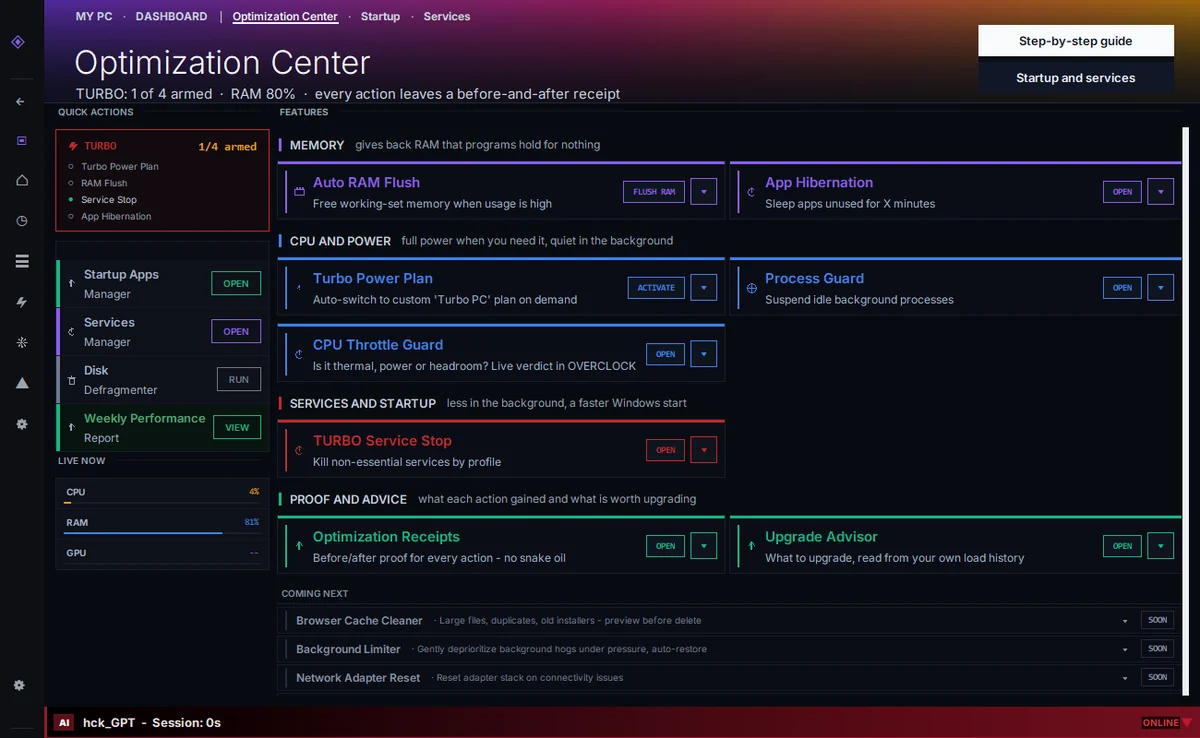
Every action PC Workman takes leaves an Optimization Receipt: what was done, the numbers before and after, and how to undo it. A receipt that says "freed 0.4 GB, no speed difference to expect" is a valid receipt. The point is to know, not to feel faster.
The guide and the usual advice
| PC Workman Optimization Guide | "Speed up your PC" lists | One-click optimizers | |
|---|---|---|---|
| Uses your PC's numbers | Yes | No | A score |
| Before and after | Yes, same numbers | No | Rarely |
| You decide each change | Yes | Yes | One button |
| Undo per step | Yes | By hand | Varies |
| Registry "cleaning" | Never | Often suggested | Often included |
Questions
How do I speed up my PC safely?
Start with what starts with Windows and what runs in the background, measure before and after, and change one thing at a time. The Optimization Guide does exactly that in six steps.
Will optimization make games faster?
Sometimes a little: fewer programs in the background mean fewer stutters. If the graphics card is at 100% in a game, only lower settings or a better card help, and the guide says so.
Can I undo what the guide changed?
Yes. Startup entries are switched off the way Task Manager does it, services return with one click, and every action has a receipt.
How to open it
In PC Workman: Optimization › Step-by-step guide, or type "optimize my PC" in hck_GPT.
Works since PC Workman 1.9.3 · page updated 2026-11-21 · Windows 10 and 11