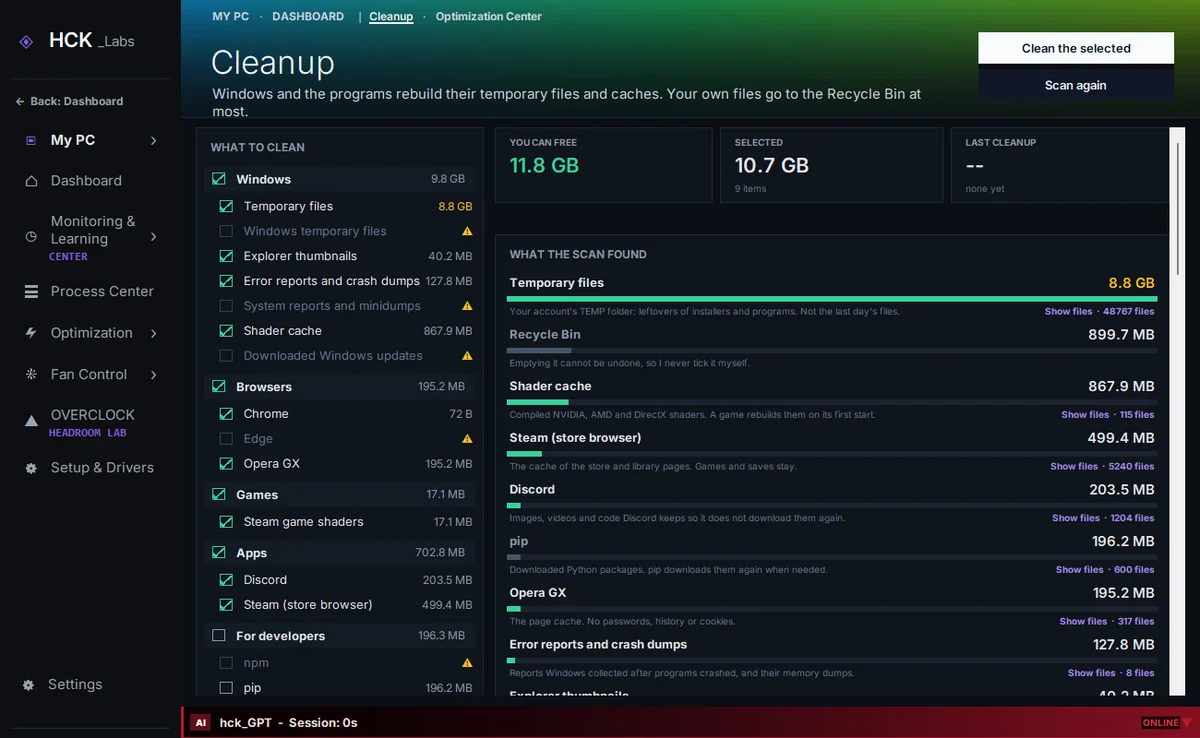
- What it cleans
- The safety rules
- The scan result and the file list
- What takes the space on your drive
- Duplicates in your folders
- Free space over time
- The receipt and Windows components
- What else speeds the PC up
- PC Workman, Disk Cleanup, Storage Sense, CCleaner, BleachBit
- Microsoft PC Manager and Glary Utilities
- Questions
- How to open it
What it cleans
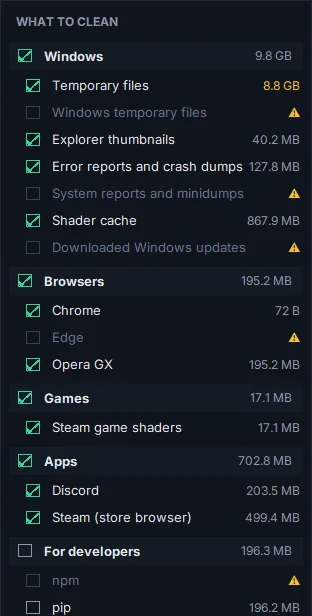
Cleanup knows 28 places, split into six groups. It only looks inside these folders. Nothing outside them is ever touched, and each place is a checkbox you can turn off.
Windows
- Temporary files (your TEMP folder)
- Windows temporary files
- Explorer thumbnails
- Error reports and crash dumps
- System reports and minidumps
- Shader cache (NVIDIA, AMD, DirectX)
- Downloaded Windows updates
- Delivery Optimization
- Graphics driver installers (C:\NVIDIA, C:\AMD)
Five of these live in system folders and need PC Workman run as administrator.
Browsers
- Chrome
- Edge
- Brave
- Opera
- Opera GX
- Firefox
- Vivaldi
Only the page cache, in every profile. Passwords, history and cookies stay.
Games
- Steam game shaders, per game, in every Steam library
- Epic Games Launcher
- Battle.net
The scan names the games: "Most: BeamNG.drive 15.5 MB, Project Zomboid 1.1 MB". A game builds or downloads its shaders again on the next start.
Apps
- Discord (images, videos and code it keeps)
- Steam (the store and library pages)
- Spotify
Games, saves and your account data are not in these folders.
For developers
- npm
- pip
- NuGet (download cache)
- Gradle
Never ticked by default: the next build downloads the packages again, which fails offline.
Your files
- Big files in Downloads (100 MB or more, untouched for 90 days)
- Recycle Bin
Never selected by default. Big downloads go to the Recycle Bin, not away for good.
The safety rules
Most cleaners decide what to delete. Cleanup decides what not to delete, and these rules hold for every place on the list:
- Known folders only. The list is fixed in the code and open to read. Cleanup does not search the disk for "junk".
- Nothing from the last 24 hours. A file changed today may belong to an installer or a program that is still working. Thumbnails are the exception, because Explorer rebuilds them in seconds.
- Open programs are skipped. If Edge or Discord is running, its place is skipped and the list says so: "Skipped, the program is open: msedge.exe".
- Files in use are skipped. When Windows holds a file open, Cleanup leaves it and counts it in the result.
- Your files are never ticked for you. Downloads and the Recycle Bin start unselected, every time, even if you cleaned them last time.
- You confirm with the amount. Before anything happens, a window says how much will be removed and from where, and that caches are deleted for good.
- No registry cleaning. Not as an option, not in a paid version. See the questions for why.
- Nothing leaves the PC. The scan and the cleanup run locally. The list of what was cleaned is stored on your disk only.
Cleanup remembers which places you ticked, so the next scan starts from your choice. The two places with your own files are the exception: they start unselected every time.
The scan result and the file list
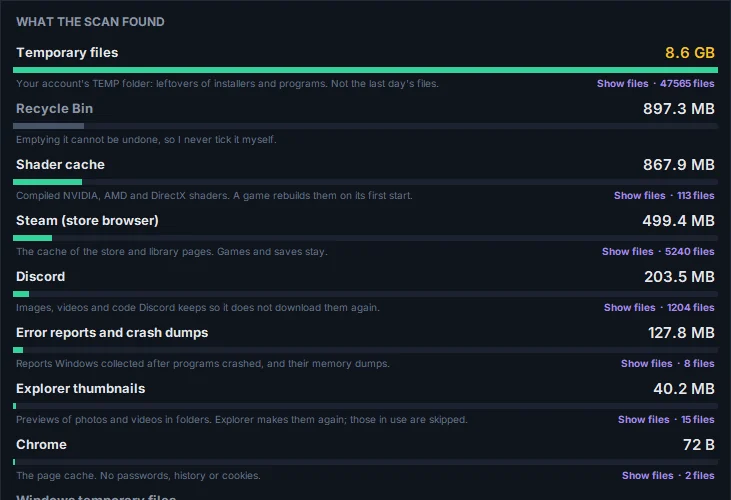
For every place the scan shows the size, what the files are in plain words, and how many there are. "Show files" opens the list of paths, so you can check what a place holds before you tick it. The Recycle Bin row is grey on purpose: emptying it cannot be undone, so it waits for you to choose it.
Under the list there is one quick action, Flush the DNS cache. It helps when a website will not open after a network change, and it removes nothing from the disk.
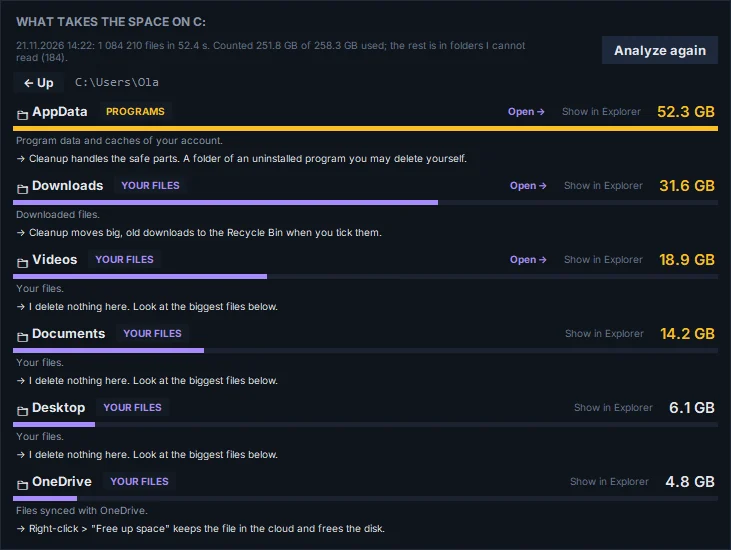
What takes the space on your drive
A cleanup handles the caches. The rest of a full drive is usually something else: a forgotten download, a game, the hibernation file, an old Windows installation. Analyze drive C: goes through the whole drive, read only, and lists the biggest folders and files. On my PC it went through 1.13 million files in 50 seconds and counted 96% of the used space; the rest sits in system folders a normal account cannot read, and the page says how many.
Other tools stop at sizes. Cleanup also says what each thing is and what to do about it, with a coloured tag:
- LEAVE IT: the page file,
Windows\Installer, the Windows folder itself. - WINDOWS TOOL:
hiberfil.sys(powercfg /h offremoves it and turns off hibernation),Windows.old(Windows removes it after about 10 days, or sooner in Settings),WinSxS(never by hand, use the component cleanup), System Restore points. - CLEANUP: TEMP, the Recycle Bin, Steam shaders, driver installers, developer caches.
- PROGRAMS: Program Files, Steam libraries, AppData, Store apps,
node_modules, virtual disks of WSL and Docker that never shrink by themselves. - YOUR FILES: Downloads, Videos, Documents, OneDrive, disc images, old installers.
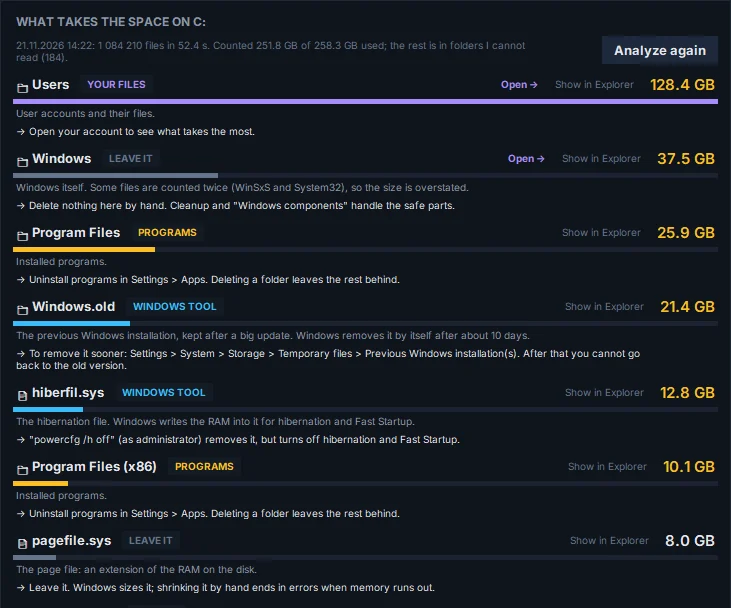
Click a folder to go inside, Show in Explorer opens it, and The biggest files on the drive lists the ten largest single files. Nothing on this list is deleted from here: the analysis only points you to the right tool.
Duplicates in your folders
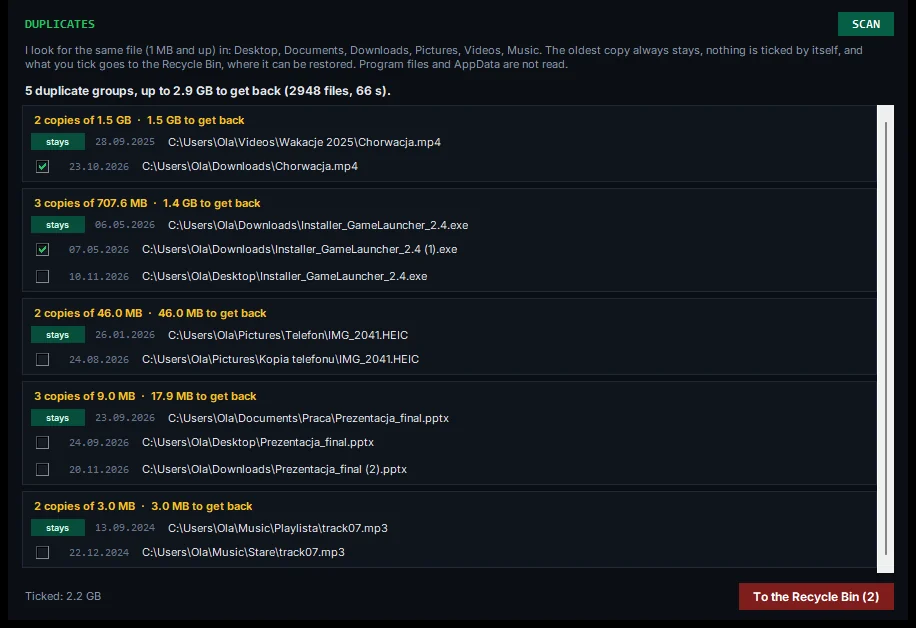
Duplicates… next to the disk analysis looks for the same file kept more than once in Desktop, Documents, Downloads, Pictures, Videos and Music, from 1 MB up. Files of the same size are compared by a hash of their contents, so a renamed copy is found and a different file with the same name is not. Program folders and AppData are never read.
In every group the oldest copy stays and cannot be ticked, nothing is ticked by itself, and the copies you tick go to the Recycle Bin, where they can be restored. Click a path to see the file in Explorer before deciding. When a drive runs low on space, hck_GPT says so once, and deletes nothing.
Free space over time
"My disk is full again" has a history. PC Workman notes the free space of every drive once a day and keeps three years of it, numbers only. The chart shows 30 days, a year or everything, with cleanups as green dots, and one sentence reads it for you:
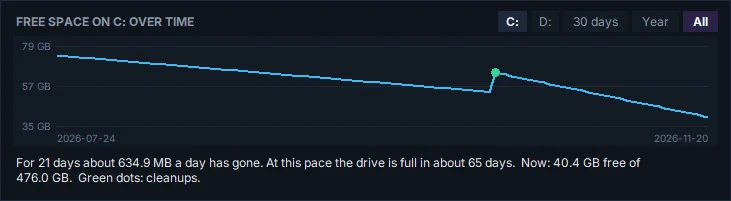
When more than 1 GB a day goes, hck_GPT says so under the scan and points to the analysis to find the folder that grows. Ask hck_GPT about free space and it answers with the trend and the three biggest folders of the last analysis.
The receipt and Windows components
Every cleanup ends with a receipt: the free space before and after on each drive it changed,
for example C: 41.2 GB → 52.3 GB free. It shows under Last cleanup and on the
history chart. When big downloads went to the Recycle Bin, the receipt says the space comes back
only once the bin is emptied, instead of counting it as freed.
Clean Windows components removes old versions of Windows components in WinSxS that newer
updates replaced. It is what Disk Cleanup calls "Windows Update Cleanup", run as
DISM /Online /Cleanup-Image /StartComponentCleanup, only as administrator and after a
confirmation, with the space freed measured. Never with /ResetBase, the stronger
variant.
What else speeds the PC up
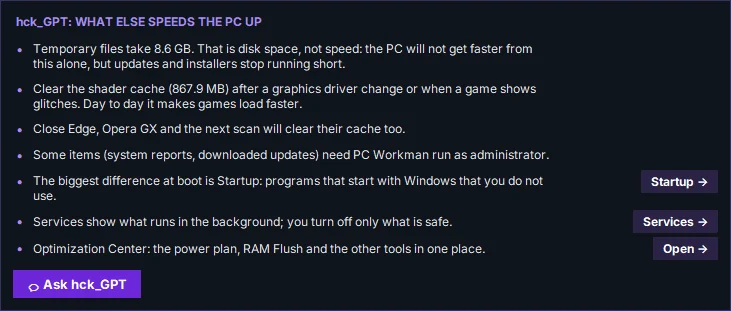
A cleanup frees space. It rarely makes Windows faster, and Cleanup says so. Below the result, hck_GPT, the assistant built into PC Workman, writes tips from this scan: how much the temporary files take, when the shader cache is worth clearing, which programs to close for a fuller scan, and where the real speed is: the startup list and background services.
PC Workman, Disk Cleanup, Storage Sense, CCleaner, BleachBit
Each of these tools frees space. They differ in what they reach and in what they risk.
| PC Workman Cleanup | Disk Cleanup (cleanmgr) | Storage Sense | CCleaner Free | BleachBit | |
|---|---|---|---|---|---|
| Chrome, Edge, Firefox cache | Yes, 7 browsers, every profile | No (Internet Explorer files only) | No | Yes | Yes |
| Discord, Steam, Spotify cache | Yes | No | No | Some | Some |
| Shader cache | Yes, NVIDIA, AMD, DirectX | DirectX only | No | Varies | Varies |
| File list before removing | Yes, per place | No | No | Summary of the analysis | Preview |
| Skips open programs | Yes, says which | n/a | n/a | Asks to close | Some cleaners |
| Leaves recent files | Last 24 hours | Temp files under 7 days | Set by you | Depends | Depends |
| Registry cleaning | Never | Never | Never | Yes | No |
| Runs on a schedule | No, only when you ask | No | Yes | Paid version | No |
| Says what each big folder is | Yes, with what to do | No | Categories only | Sizes by file type | No |
| Free space history and forecast | Yes, 3 years, per drive | No | No | No | No |
| Steam shaders per game | Yes, by game name | No | No | Varies | Varies |
| Windows component cleanup | Yes, as administrator | Yes | In Temporary files | Varies | Varies |
| Price and code | Free, open source | Built into Windows | Built into Windows | Free and paid, closed | Free, open source |
Where the others are better. Storage Sense runs by itself on a schedule, and PC Workman does not. BleachBit reaches more programs and can also wipe history, cookies and free space, which is the right tool if privacy wiping is what you want. CCleaner has a long list of supported apps.
Why trust matters here. A cleaner deletes files, so it needs more trust than most programs. In 2020 Microsoft Defender started flagging CCleaner installers as a potentially unwanted application because of bundled offers, and registry cleaning, which CCleaner includes, is not supported by Microsoft. PC Workman's Cleanup is under 400 lines of open code that anyone can read before running it.
Microsoft PC Manager and Glary Utilities
Microsoft PC Manager is free, from Microsoft, with a one-click Boost, storage tools and finders for large and duplicate files. Boost mostly ends background processes and clears temporary files: in PCMag's test it lowered memory use by about 5% and moved a PCMark 10 score by 9 points (summary of the test). PC Workman measures instead of promising: a receipt with the free space before and after, and a history that shows whether the drive is filling up again.
Glary Utilities puts a lot into one window and its 1-Click Maintenance cleans junk, privacy traces and the registry in one pass (TechRadar). PC Workman keeps the registry out on purpose and asks before every cleanup, with the amount.
Questions
Will cleaning temporary files make my PC faster?
Usually not by itself. Temporary files take disk space, not speed. Cleaning helps when the system drive is nearly full, because Windows updates, installers and games need free space to work and fail on a full drive. For speed, the startup list and background services matter more.
Is it safe to delete the shader cache?
Yes. A game builds its shaders again on the next start, so the first start can load longer or stutter for a moment. Clear it after a graphics driver update or when a game shows graphical glitches, not every day.
Will clearing the browser cache log me out of websites?
No. Only the page cache is removed (the Cache, Code Cache and GPUCache folders). Cookies, saved passwords, history and form data stay, so you stay logged in.
Why does PC Workman not clean the registry?
Microsoft does not support registry cleaners and warns they can cause serious problems (KB2563254). Leftover entries take almost no space and do not slow Windows down, so the risk buys nothing.
What happens if Discord or my browser is open?
That place is skipped and the list names the program. A running program keeps its cache in use, and deleting it underneath can make the program misbehave. Close it and press "Scan again".
What is taking up space on my C: drive?
Usually your own files (Downloads, Videos), program data in AppData, games, the Windows folder, the hibernation file and the page file. Analyze drive C: goes through the whole drive in about a minute, read only, and says what each big folder and file is and whether it may go.
Can I delete WinSxS, Windows.old or hiberfil.sys?
Not by hand, and not all of them. WinSxS: never manually; the component cleanup frees old versions safely. Windows.old: Windows removes it after about 10 days, or sooner in Settings > System > Storage > Temporary files, but then you cannot go back. hiberfil.sys: powercfg /h off removes it and also turns off hibernation and Fast Startup.
Can I get the deleted files back?
Temporary files and caches are deleted for good, because Windows and the programs rebuild them. Big files from Downloads go to the Recycle Bin, so you can restore them. Emptying the Recycle Bin cannot be undone, which is why it is never selected for you.
How to open it
In PC Workman: My PC › Cleanup. You can also ask hck_GPT "how do I free up disk space", and the answer links straight to the tab.
Works since PC Workman 1.9.3 · page updated 2026-11-21 · Windows 10 and 11