Drawn from what is really inside
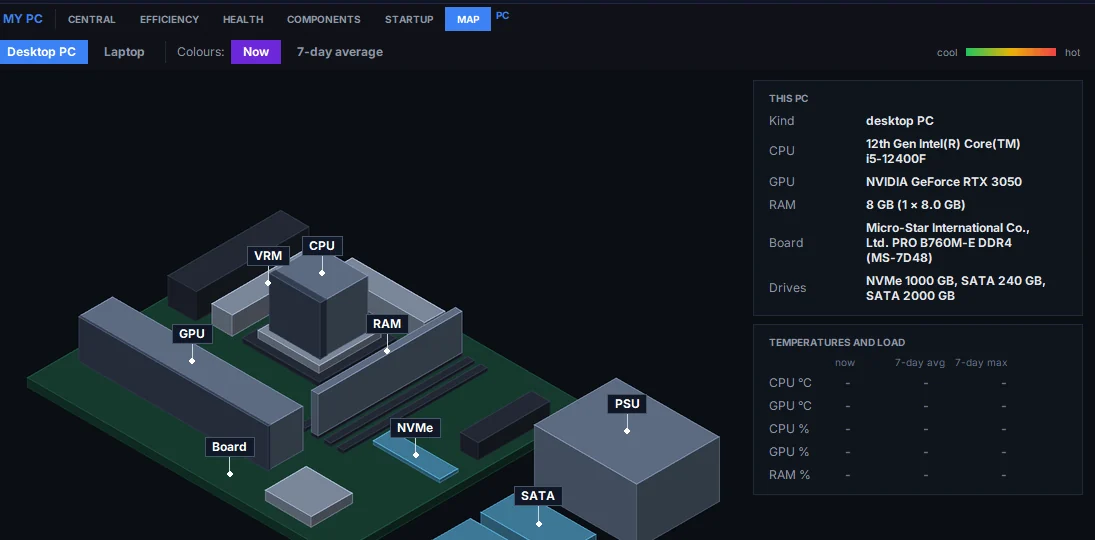
The map is not a stock picture. PC Workman reads how many RAM sticks there are, whether there is a graphics card, and which drives sit on NVMe and which on SATA, then draws them in their places on a desktop board or inside a laptop. My PC has one 8 GB stick, so the map shows one stick.
The panel next to it lists This PC: processor, graphics card, memory with the stick layout, board and drives, plus a table of temperatures and load: now, the 7-day average and the 7-day maximum, one unit per row.
Colours that mean something
Now colours each part by its temperature this second, from cool blue to hot red. 7-day average colours it by how it usually runs, which shows the part that is always warm rather than the one that spiked once. Hover a part and a card says what it is and how it is doing, placed on the side away from the part so it does not cover it.
From a part to its history
Click the CPU, the graphics card or the memory and Activity Memory opens for that part: its load and temperature over hours, days or months, and the processes behind it.
Questions
How can I see what is inside my PC without opening it?
Open My PC › Map in PC Workman: it draws the processor, graphics card, every RAM stick, the drives and the board it finds, and lists their models next to the drawing.
Which part of my PC is the hottest?
Switch the map to 7-day average: the part that is warm most of the time shows red, not only the one that spiked once. Hover it for the numbers.
Does it work on a laptop?
Yes. PC Workman draws a laptop when it finds a battery, with the graphics card shown only when there is a separate one.
How to open it
In PC Workman: My PC › Map, or the PC badge at the top of My PC.
Works since PC Workman 1.9.3 · page updated 2026-11-21 · Windows 10 and 11